agterm
A native macOS terminal for working with AI coding agents across many sessions at once.
Overview
agterm is intentionally opinionated: rather than scattering shells across tabs, it organizes them into named workspaces, each holding the sessions for one project or context. Several agent-driven sessions run side by side and you move between them without losing track of which is which.
The design is deliberately minimal: a sensible minimum out of the box, plus a complete control API and CLI on top. Almost everything is scriptable, so anything past the defaults you build yourself. None of it is limited to agents — it works as a capable general-purpose terminal too.
For the real terminal work — rendering, VT parsing, and shell I/O — agterm embeds Ghostty's engine (libghostty); everything above is agterm's own.
A vertical, two-level sidebar groups sessions under named workspaces.
agtermctl drives almost everything over a local socket.
Split a session into two shells, drop a scratch over it, or run a program in an overlay.
An installable skill teaches Claude Code or Codex to drive agterm through agtermctl.
Tinted glyphs show which of many agents needs you.
Install
Releases are signed and notarized for Apple Silicon (arm64) Macs running macOS 14 or later, so they open without any Gatekeeper workaround.
Homebrew
The cask also installs the agtermctl command-line tool, so cask users shouldn't run the in-app installer as well.
Direct download
Download the latest .dmg from the releases page, open it, and drag agterm.app into /Applications.
Optional Help-menu installers
None are needed to use agterm as a terminal; each connects it to a wider workflow, and you can run any of them later.
- ›Install Command Line Tool… puts the bundled agtermctl on your PATH (a symlink in /usr/local/bin) so you can script the app. The Homebrew cask already installs it.
- ›Install Agent Status Hooks… lets a coding agent (Claude Code, Codex, Pi, or others) report its state onto its session's row, so you can tell which of several running agents is active, blocked, or finished.
- ›Install Agent Skill… teaches Claude Code or Codex how to drive agterm through agtermctl, so an agent inside a session can build its own layout, run overlays, and manage windows without you explaining the API. It drives the app through the CLI, so install that one too.
Build from source
Requires macOS 14+, Xcode 26 with xcodegen on PATH (plus its Metal Toolchain), and Homebrew.
$ scripts/setup.sh
# generate the Xcode project, build Debug, launch
$ scripts/run.sh
# host-free unit tests, no Xcode needed
$ cd agtermCore && swift test
Workspaces & sessions
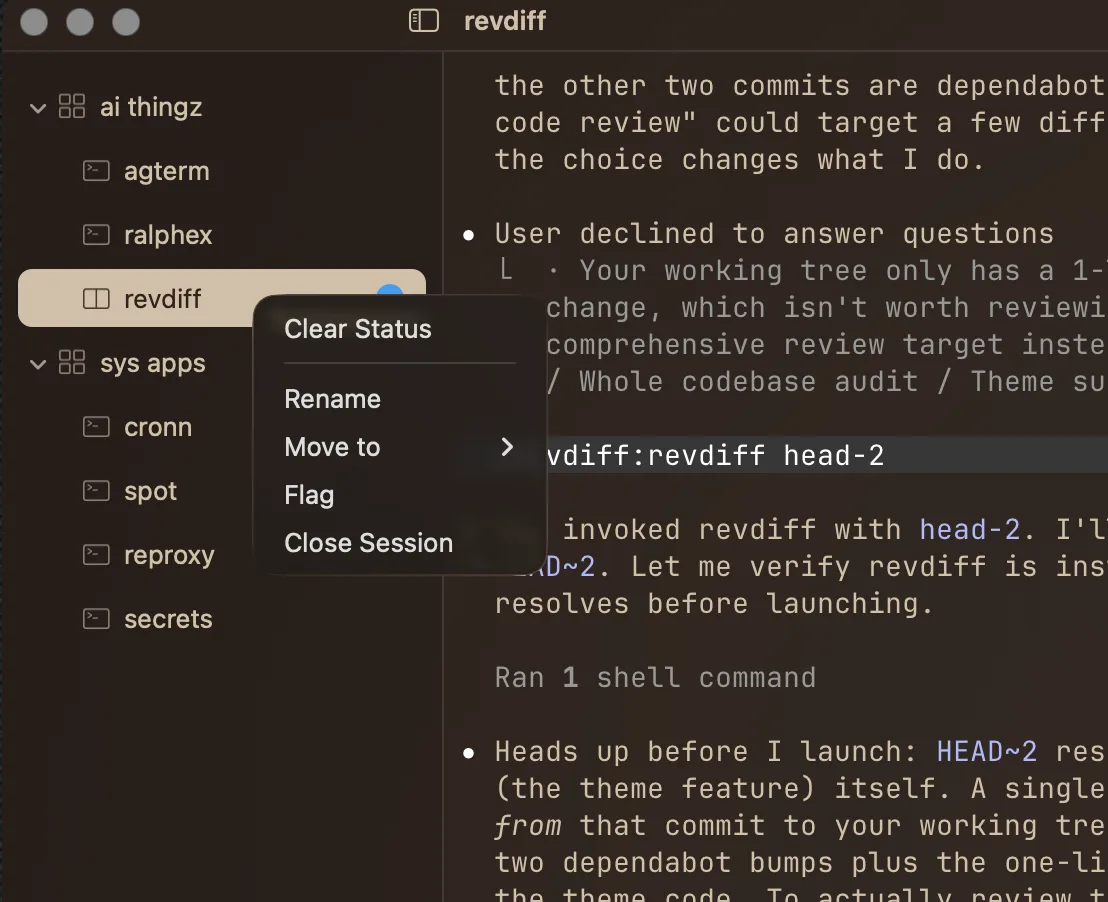
A session is one running shell with a name, a working directory, and its own scrollback — the unit you work in and the row you see in the sidebar. A workspace is a named group of sessions for one project or context. Sessions can move between workspaces while still running, keeping their shell and scrollback.
- ›Two-level sidebar tree: workspaces, each containing sessions. Each row carries a leading kind icon — a filled folder for a workspace, an outlined terminal for a session.
- ›Default session name is the basename of its working directory. Renaming pins a custom name; clearing it reverts.
- ›Add workspaces and sessions from a two-icon bar at the bottom of the sidebar. Rename inline (double-click a row). Duplicate Session from a single session's context menu for a fresh shell in the same workspace, right after it, in its current directory — only the directory carries over. Shift-click and ⌘-click select multiple sessions for batch flag, close, move, and drag. Dragged sessions keep running, shell and scrollback intact.
- ›Drag up to 20 folders from Finder onto the tree to open sessions there. Collapsed workspaces spring open while hovering and close again on cancel. Reveal a session's focused-pane directory in Finder from its context menu.
- ›Narrow a crowded sidebar two ways: flag sessions across workspaces into a flat working-set view (a flag is durable and survives a move), or focus a single workspace to collapse the tree to just its sessions. The two are independent.
Terminals: split, scratch, quick, search, overlay
A session can split into two shells side by side. Both panes share one sidebar row — a split is one session with two terminals, not two sessions. One pane is focused at a time and the divider position is remembered.
A single throwaway shell per window, not tied to any session, overlaid at 90% of the window and opening in the active session's directory. Click again or the surrounding margin to dismiss; hiding keeps its shell alive.
An extra shell belonging to one session, for a quick aside next to your main work. It covers the session full-screen and hides again without killing it. Opens in the session's directory; not restored across launches.
A search bar at the top of the focused terminal highlights matches in live scrollback with an "N of M" counter. Enter steps forward, Shift-Enter back, Esc closes.
Runs one program in a temporary terminal over a session and disappears when the program exits, leaving the session unchanged. Mostly driven from the control API to launch an interactive program (a diff viewer, a process monitor) — full-size or as a floating panel. See the agtermctl reference.
Fills the whole window with one terminal surface — a pane, the scratch, an overlay, or the quick terminal —
hiding the sidebar and collapsing the title bar to a slim strip with the traffic lights, the window title, and an exit button
(⌘W leaves zoom too). A view mode, not a layout change: exiting
restores split ratios, focus, and visibility exactly as they were, and everything else keeps running behind it.
Scripts can zoom any surface by id with agtermctl surface zoom. Distinct
from macOS window zoom and full screen, which size the window itself.
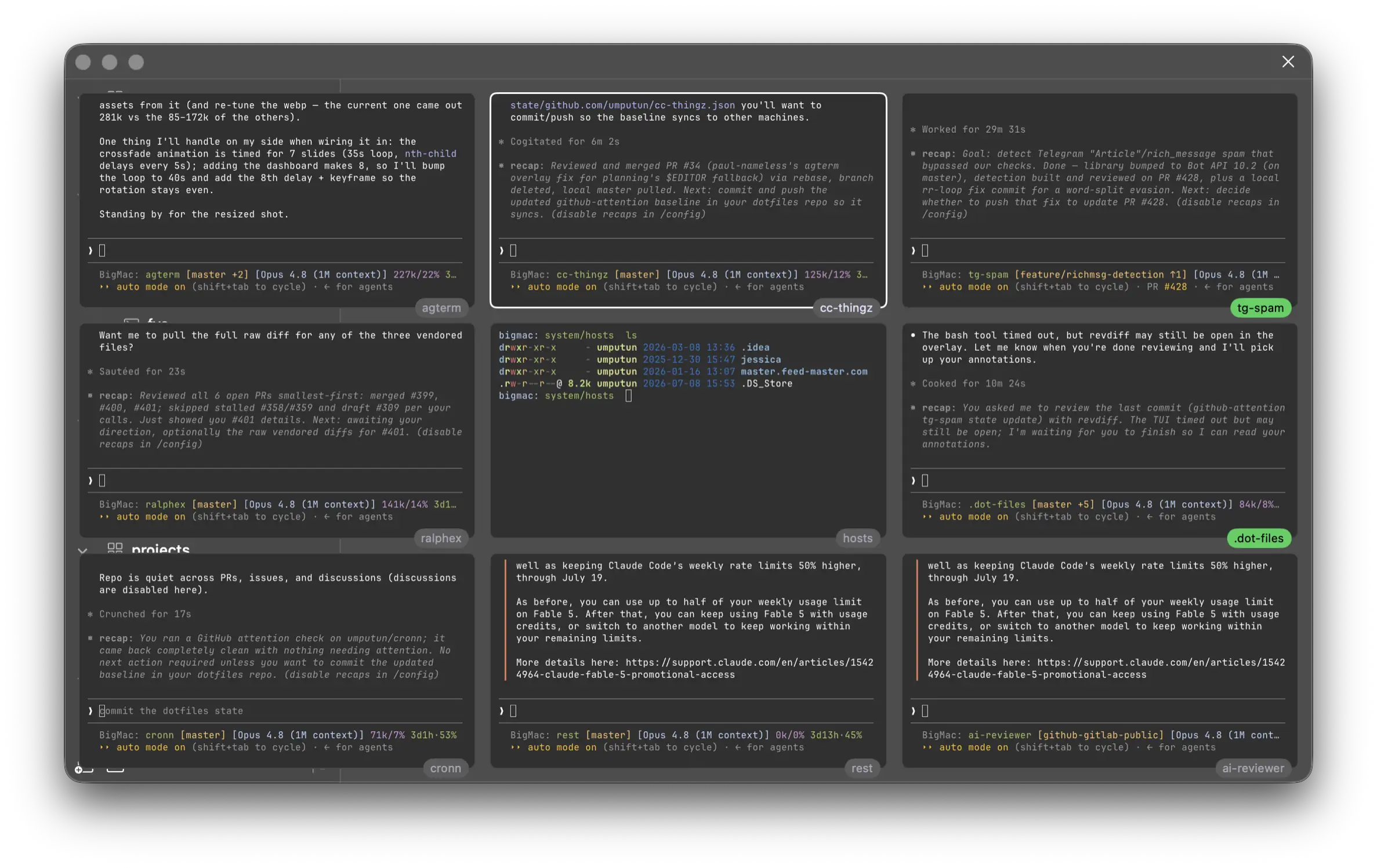
Watch several agents or builds at once: sessions' live output in one grid overlaid on the window. The cell unit is a
session+pane — a non-split session is one cell, a split session is two (its left and right panes), capped at nine
cells. Each cell's name chip also reflects the session's agent status, filling with the status color and pulsing
while it blinks, so a session that needs attention stands out in the grid. It is view-only — no cell's terminal
takes input; the arrow keys move a highlight, Enter (or a single mouse click on a cell) jumps into that
session and focuses that exact pane, and Esc closes. Opened over the control channel with
agtermctl dashboard <ids…>, or
agtermctl dashboard --mru to fill it from the window's most-recently-used
sessions instead of naming ids. The most-recently-used grid also has a built-in opener —
⌘⇧D (or Navigate ▸ Dashboard, the command palette's Dashboard, or the
title-bar grid button) opens it auto-sized. Cell fonts size absolutely
(--font-size) or scale to the grid
(--auto-size). Mutually exclusive with terminal zoom.
Navigation
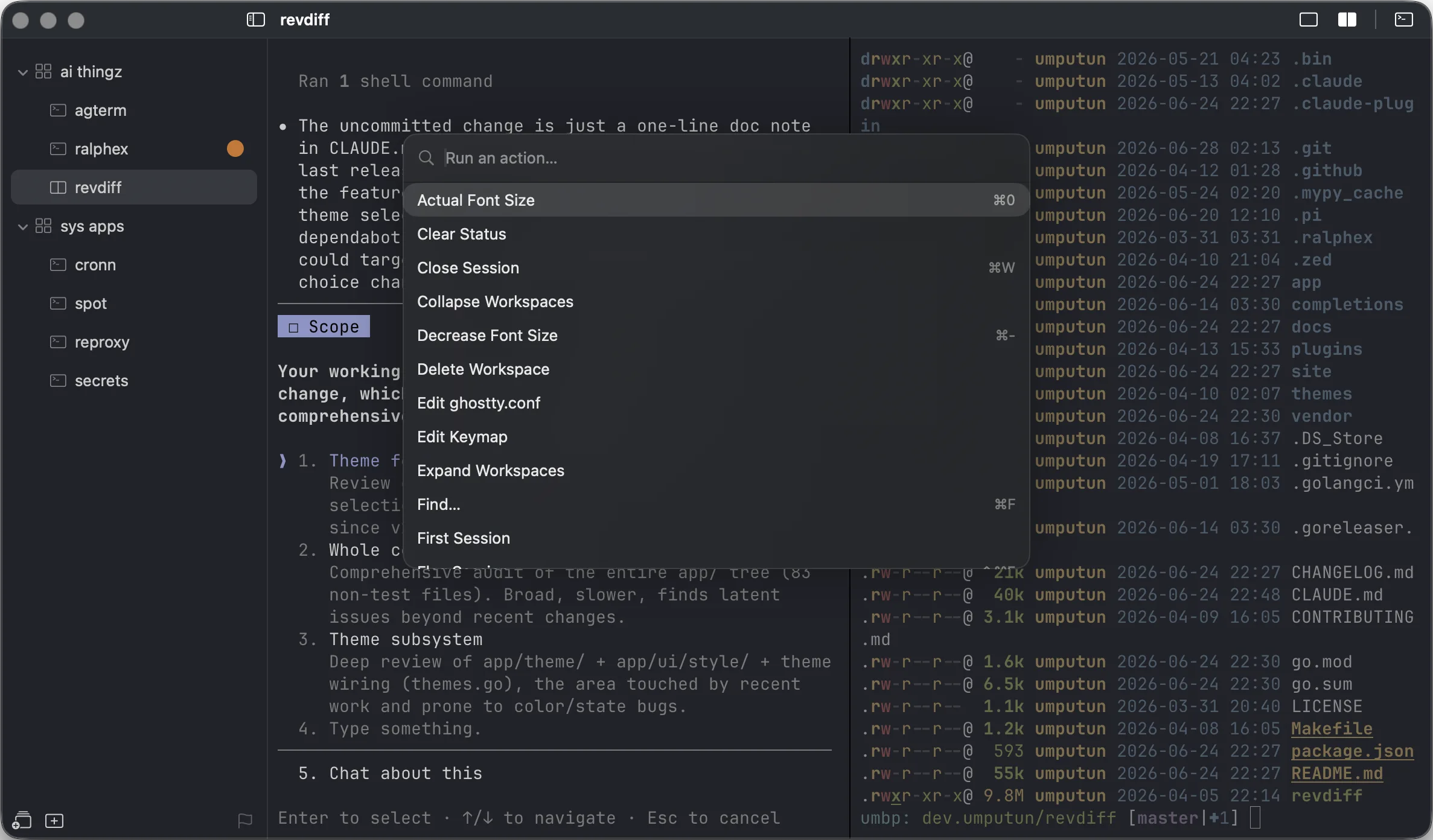
agterm is built to run from the keyboard. Every action has a shortcut and appears in the menus. Three fuzzy palettes (type to filter, Enter to run, Esc to dismiss) and a Ctrl-Tab MRU switcher cover the rest; a title-bar clock button opens the recent-session list with the mouse. That same recently-used history decides where you land when you close the session you are in — agterm returns you to the session you were most recently working in, not to whichever row happens to sit next to the one that closed. The pick stays inside the closing session's workspace, and in the flagged view stays within the flagged set, widening beyond the workspace only when the close leaves nothing there to return to; if no recent session qualifies, it falls back to the adjacent row in that workspace — to the adjacent flagged row in the flagged view, unless the close took the last flagged session, where the plain neighbor stands — and, when the closed session was the last one in its workspace, to the first session of another workspace.
Windows
A window is a top-level bundle of workspaces and sessions in its own on-screen macOS window, with its own sidebar and its own sessions — so "work" and "personal" can run as two separate windows at once, each with its own tree. Keep a library of windows, open one per screen, and create, rename, or delete them from the File menu (New Window ⌥⌘N) or the action palette. The set of windows open at quit reopens on the next launch, frames restored.
Notifications
A program in any session can raise a desktop notification (via OSC 9 / 777, or agtermctl notify). It surfaces as a macOS banner and an unseen-count badge on the sidebar row (rolled up onto a collapsed workspace); clicking the banner brings agterm forward and focuses the exact pane that raised it, and focusing a session clears its badge — or clear it headlessly with agtermctl session seen so an orchestrator driving a session over the socket can acknowledge it without pulling focus (agtermctl tree --json reports each session's unseen count). Banners and count badges toggle independently in the Notifications settings, which also sets the Dock-icon bounce for a background notification (off, once, or until you focus agterm) and an optional notification sound (a system sound attached to each delivered banner; None by default, silenced by Do Not Disturb). For a coding agent that just needs to say it is waiting, agent status is usually the better fit.
Customization & settings
A live-preview theme picker (View ▸ Select Theme…, or the action palette) applies each of the 512 bundled themes to the open terminals as you move through the list — Enter commits and syncs it to Settings, Esc reverts to the one you started on. Settings (⌘,) has six tabs, and changes apply live:
agtermctl reference
Looking for the full list? All 64 commands, with every argument, return value, and error, live on the Command reference →
agterm can be driven from a script over a local unix-domain socket through the companion CLI, agtermctl. This is for fire-and-forget scripting that manages workspaces and sessions, injects text, and invokes control actions — there is no output streaming and no event subscription.
To open a terminal at a directory without the CLI, open -a agterm <path> — or right-click a folder in Finder and choose Open With ▸ agterm. agterm adds a session in that directory to the last-active window. This works when agterm is already running (its usual state); if it isn't, launch agterm first, then run the command. The socket equivalent, and the way to place the session precisely, is agtermctl session new --cwd <path>.
Each command targets a session or workspace by its UUID, a unique prefix of that UUID (git-style), or the keyword active (the selected session / current workspace). --target defaults to active, so the current one rarely needs naming. --target/--workspace take an id, a prefix, or active — never a name. Mutating commands normally print the affected id; batch session close and session move accept repeated --target options and print the number of sessions actually changed. Add --json for the raw response, or --socket PATH to override the socket. The exit code is zero on success, non-zero on error.
Sessions & workspaces
agtermctl tree
# create a workspace, capture its id, open a session in it
ws=$(agtermctl workspace new work)
agtermctl session new --workspace "$ws" --cwd ~/src/agterm
# run a command as the session's process (argv-style; wrap in sh -c for shell syntax)
agtermctl session new --command "ssh user@host"
agtermctl session new --command "zsh -lc 'make test'" --wait # hold open after the command exits (press any key to close); needs --command
agtermctl session new --name myhost --workspace-name servers --create-workspace
# step / reorder / relocate
agtermctl session go --to next # next|prev|first|last
agtermctl session move --to up # reorder: up|down|top|bottom
agtermctl session move "$ws" # relocate to a workspace
agtermctl session new --after active # create right after the current session (--before to precede)
agtermctl session new --cwd ~/src/agterm --no-select # create in the background without switching to it
agtermctl session duplicate --target 9f3c # a fresh shell in that session's workspace and cwd, right after it
agtermctl session move --after 9f3c # place after an anchor (its workspace is used; relocates cross-workspace)
agtermctl session move "$ws" --target 9f3c --target abcd # move a batch as one ordered block
agtermctl session close --target 9f3c --target abcd # one grace-period undo for the batch
agtermctl workspace move --to top # reorder a workspace
agtermctl workspace new work --collapsed # create a workspace closed in the sidebar (fill with session new --no-select)
agtermctl workspace collapse --target 9f3c # collapse one workspace; workspace expand re-opens it
agtermctl workspace focus on # collapse tree to active ws (on|off|toggle)
agtermctl session reveal --target 9f3c # reveal the focused pane's cwd in Finder
Typing, selection & text
agtermctl session type --target 9f3c $'make test\n'
echo 'make test' | agtermctl session type --stdin
# route to a pane: left (default) | right (split) | scratch (even when hidden)
agtermctl session type --pane right $'ls\n'
# a never-shown session needs --select to realize its surface first
agtermctl session type --target "$id" --select $'echo hi\n'
# read a pane's selection (does not touch the clipboard) or its output
sel=$(agtermctl session copy --target 9f3c)
agtermctl session text --pane scratch --target 9f3c
# paste the system clipboard (⌘V), or select the whole buffer (⌘A) then copy it
agtermctl session paste --target 9f3c
agtermctl session select-all --target 9f3c
Splits, scratch, quick & search
agtermctl session resize --split-ratio 0.7 # or --grow-left/--grow-right D
agtermctl session scratch toggle # on|off|toggle
agtermctl session flag on # on|off|toggle|clear
agtermctl session seen --target 9f3c # clear the unseen badge, focus-free
agtermctl sidebar mode flagged # tree|flagged|toggle
agtermctl quick toggle # show|hide|toggle
agtermctl quick type 'ls -la' # or --stdin; quick text reads it back
agtermctl surface zoom # fill the window with the active surface (show|hide|toggle; --target surface:<id>:right)
agtermctl dashboard "$a" "$b" "$c" --auto-size # view-only grid; a split session is two cells, capped at 9 panes (--mru; --font-size N | --auto-size; --close)
agtermctl font inc # main pane font size
agtermctl font dec --pane right # just the split pane (left|right|scratch)
# open the search bar, print the "N of M" counter
agtermctl session search "error"
agtermctl session search --next # --prev | --close
Overlays
agtermctl session overlay open "revdiff HEAD~3" --target 9f3c
# floating framed panel at 70% of the pane, optionally tinted
agtermctl session overlay open "htop" --size-percent 70
agtermctl session overlay open "revdiff HEAD~3" --size-percent 80 --background-color "#2a1a3a"
# switch the user to the target as the overlay opens
agtermctl session overlay open "revdiff HEAD~3" --size-percent 80 --target 9f3c --follow
# keep it open after exit, or block until it exits and inherit its status
agtermctl session overlay open "make test" --wait
agtermctl session overlay open "make test" --block
# resize an open overlay in place — floating percent, or back to full (the program keeps running)
agtermctl session overlay resize --size-percent 60 --target 9f3c
agtermctl session overlay resize --full --target 9f3c
agtermctl session overlay close --target 9f3c
agtermctl session overlay result # last overlay's exit status
--wait keeps a "press any key to close" prompt so you can read the final output; --block reports only the exit status (the overlay never captures stdout — a TUI writes its own result file). By default an overlay opens on its target without switching the active session (full and --size-percent floating alike); --follow switches the user to the target. session overlay resize changes an open overlay in place — --size-percent makes it floating, --full switches it back — without restarting the program. A (overlay) tag in agtermctl tree marks a session whose overlay is open.
Windows
w=$(agtermctl window new work)
agtermctl window select "$w" # raise it (opening if closed)
agtermctl window rename "$w" personal
agtermctl window close "$w" # close its window (bundle kept)
agtermctl window delete "$w" # delete (last window can't be deleted)
# --window targets a specific window's tree on session/workspace/tree/font
agtermctl tree --window "$w"
agtermctl session new --window "$w" --cwd ~/src/agterm
Keymap, config & notify
agtermctl config reload # re-read the ghostty config, returns the diagnostic count
agtermctl notify --title Build --body "tests passed"
Customizing keys
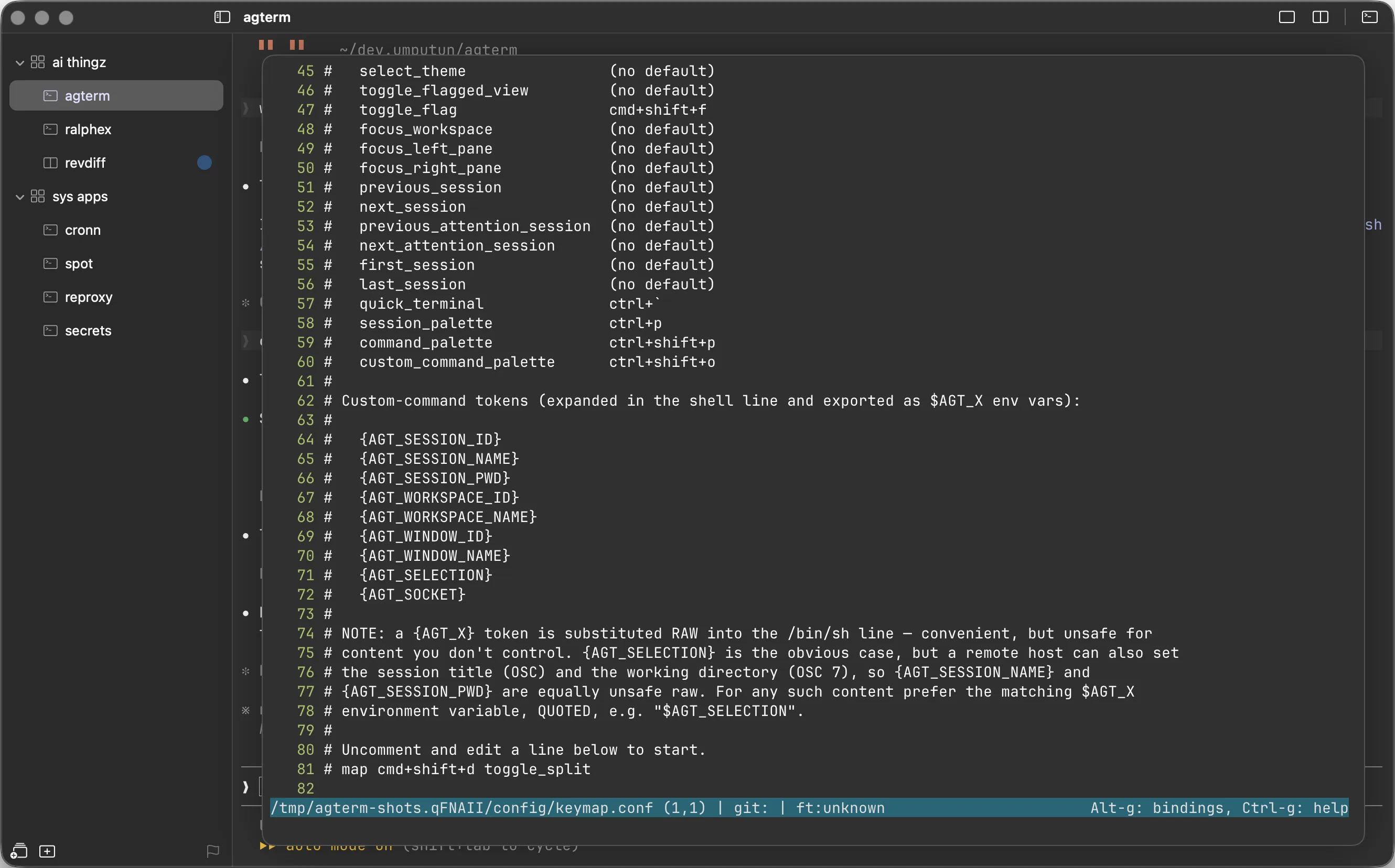
agterm reads a user-editable, kitty-flavored keymap file at ~/.config/agterm/keymap.conf. It rebinds built-in menu shortcuts and defines custom shell commands bound to keys (and listed in the action palette). The file is optional — a commented starter is written on first launch, and the directory can be changed in Settings ▸ Key Mapping. Two verbs; blank lines and # comments are ignored.
map cmd+shift+l toggle_split
map ctrl+shift+k command_palette
# define custom commands ("name" shows in the palette; chord optional)
command "Open in Zed" cmd+shift+e open -a Zed {AGT_SESSION_PWD}
command "Lazygit" ctrl+a>g agtermctl session overlay open lazygit --socket {AGT_SOCKET}
command "Deploy" ./deploy.sh
A chord is modifier words (ctrl, cmd, opt, shift) joined by + and a base key (a single character or tab/space/return/delete). A Shift-typed symbol is written shift+<base> (e.g. shift+/ for ?, shift+= for +) — the base key, not the shifted symbol. Custom commands may also use a leader sequence (ctrl+a>g), and their chord must include a modifier — a bare key can't shadow a plain terminal key.
Bindable built-in actions
new_workspace rename_workspace delete_workspace
new_session open_directory rename_session duplicate_session
close_session clear_status
increase_font_size decrease_font_size reset_font_size
toggle_split toggle_scratch toggle_search
toggle_sidebar toggle_flag toggle_flagged_view
focus_left_pane focus_right_pane focus_workspace
previous_session next_session first_session last_session
previous_attention_session next_attention_session
quick_terminal session_palette command_palette
custom_command_palette show_attention
select_theme toggle_fullscreen toggle_terminal_zoom
dashboard
Command tokens
{AGT_WORKSPACE_ID} {AGT_WORKSPACE_NAME}
{AGT_WINDOW_ID} {AGT_WINDOW_NAME}
{AGT_PANE} {AGT_SELECTION} {AGT_SOCKET}
Tokens expand at fire time (also exported as $AGT_* env vars on the spawned process). A token is substituted raw into the shell line, so for content you don't control — {AGT_SELECTION}, and also {AGT_SESSION_NAME}/{AGT_SESSION_PWD} (a remote host can set these via OSC) — prefer the matching quoted env var, e.g. "$AGT_SELECTION".
Open the file with File ▸ Edit Keymap… (or the ⌃⇧P palette): it opens in a 95% overlay running $VISUAL/$EDITOR (falling back to vi) and reloads on quit. Apply edits made elsewhere with File ▸ Reload Keymap or agtermctl keymap reload. A malformed line never discards the rest — it surfaces in the diagnostics list in Settings ▸ Key Mapping while the good lines still apply.
v1 limitations
- ›Built-in rebinds are single-chord only; leader sequences work only for custom commands.
- ›The arrow keys can't be written as a chord, so the arrow-bound actions keep their defaults unless mapped to a parseable chord. The literal + and > can't be a bare key token (they are the separators), but those keys are bindable as shift+= and shift+.; only increase_font_size's default ⌘+ shows as a glyph because its stored form doesn't round-trip through the file.
- ›The Ctrl-Tab MRU switcher and Ctrl-1/Ctrl-2 pane focus are not rebindable yet.
Ghostty config
agterm builds its terminal config from four sources, each overriding the one before it:
(lowest) (global, OFF by default) (agterm-scoped) (UI wins)
agterm is self-contained: by default it does not read your global ~/.config/ghostty/config, so a config written for the standalone Ghostty.app never silently changes agterm. Turn on Settings ▸ General ▸ Use my global Ghostty config to fold it in.
<config dir>/ghostty.conf (default ~/.config/agterm/ghostty.conf) is the place to customize agterm. It sits next to keymap.conf, is always loaded, and is scoped to agterm so the standalone Ghostty.app never reads it. Put any ghostty config key there — the keys agterm manages from Settings (font, theme, opacity, blur, scroll speed) still win. A common use: macos-option-as-alt = true. The full key reference is at ghostty.org/docs/config.
Programs can read and write the macOS clipboard over OSC 52. agterm prompts before a program reads your clipboard (a read hands its contents back to the program); a normal ⌘V paste is never prompted. Clipboard writes go through by default, matching other terminals so a remote tmux/vim yank still reaches your clipboard. To gate writes, set clipboard-write = ask or deny. Each prompt offers Don't ask again this session.
A ⌘-click on a file:// link — the kind ls --hyperlink, eza, and many compilers emit — reveals the file in Finder instead of opening it. A terminal renders untrusted program output, so a link could point at a .app or .command; revealing selects the file without running it, which is the security boundary — actually opening it stays a separate, explicit action. Web (http/https) and mailto links still open as before. A file:// link that names another host is ignored rather than revealed, so a stray link can't trigger a Finder network mount.
Open the file with File ▸ Edit ghostty.conf… (a 95% editor overlay, same as Edit Keymap). Apply edits made elsewhere with File ▸ Reload Config or agtermctl config reload. A malformed line is skipped and the good ones still apply; the returned diagnostic count covers every config source.
Agent status
A coding agent running in a session can flag its status on that session's sidebar row, so you can tell at a glance which of many concurrent agents needs you. The glyph shows just left of the notification badge on every non-idle session; a one-time completed flash auto-clears once you visit the session.
An agent sets it over the control channel:
agtermctl session status active --target "$AGTERM_SESSION_ID"
agtermctl session status blocked --sound default --target "$AGTERM_SESSION_ID"
agtermctl session status completed --auto-reset --target "$AGTERM_SESSION_ID"
agtermctl session status blocked --color '#ff0000' --target "$AGTERM_SESSION_ID"
agtermctl session status blocked --pane right --target "$AGTERM_SESSION_ID"
agtermctl session status idle --target "$AGTERM_SESSION_ID" # clear it
--auto-reset clears the indicator the moment you visit the session; --blink pulses the glyph; and --sound plays a one-shot sound (default, or a system sound name like Basso/Ping/Tink). To make every blocked prompt sound without touching the hooks, set Settings ▸ Agent Status ▸ Blocked sound. --color (#rrggbb) overrides the glyph tint for that one call — it rides the status, so the next status set without it reverts to the configured color.
--pane (left|right|scratch, defaulting to the main pane) records which pane set the status: a block set from a background pane survives typing in another pane, and any GUI selection of the session (auto-follow, attention nav ⌃⌥↑/↓, plain session nav, the command palettes, and a sidebar click) reveals and focuses that pane — the split, or a hidden scratch — instead of the main pane, so an agent in a split or scratch tags its own pane to be found (the control session go next-attention only steps the selection, it does not itself move focus into the pane). It reads back on tree as statusPane.
Typing into a blocked/completed session clears its status; an interrupt keystroke, Esc or Ctrl-C, interrupts an active one and clears it too.
When the sidebar is hidden the glyphs go with it, so an optional title-bar bell (Settings ▸ Notifications ▸ Show attention indicator, off by default) reflects the window: dimmed when nothing needs you, plain when a session is active or completed, filled amber when any is blocked. Clicking it opens a popover of this window's non-idle sessions, sorted blocked → active → completed, that you hover to highlight and click to jump to the session and the pane that set its status. ⌃⇧I, Navigate ▸ Go to Attention…, or the action palette's "Show Attention" opens the same attention list as a searchable palette. Over the control channel, agtermctl tree --json reports each session's status and statusPane (which pane set it).
Auto-follow blocked sessions. When several agents run at once, a session that blocks is easy to miss. Turn on Settings ▸ Agent Status ▸ Auto-follow blocked sessions (Disabled by default, or a 5s/10s/30s/60s/5m idle timeout) and, after you have been idle from input for that long, the window selects and focuses the oldest waiting blocked session, so you are pulled to whatever agent is waiting. It is per-window and window-wide (crossing workspaces within the window). Auto-follow pulls you to each blocked session at most once: after you have been shown a block and moved on (even without replying), it will not pull you back to it, so it walks the waiting blocks oldest-first, shows each once, then stays quiet. A session becomes eligible again only after it leaves blocked and re-enters it. Being parked on a blocked session likewise suppresses jumps while you stay on it. The opt-in Don't auto-follow away from a running session (off by default) holds the selection put while the current session is active. Over the control channel, agtermctl tree --json reports the window's idleMs (ms since your last input, live) and autoFollowMs (the configured timeout in ms, omitted when Disabled); agtermctl window list --json reports autoFollowMs per window (as of the last refresh), but not the live idleMs.
To wire it up automatically, Help ▸ Install Agent Status Hooks… installs a hooks package: a generic bash/zsh/fish shell integration (flags active while a command matching AGTERM_AGENT_RE runs; the default set is gemini, cursor-agent, aider, opencode, crush, goose), and four Claude Code hooks (prompt → active, tool run → active, Stop → completed, permission prompt → blocked).
Six Codex lifecycle events run a dedicated adapter. A permission request is only a candidate because it fires before Auto Review; the adapter keeps automatic decisions active and changes the row to blocked only after a real approval or structured question appears in that pane. On Stop, a final assistant message containing ? reports blocked; every other final message reports completed and auto-resets.
When Pi has already created ~/.pi/agent, the installer also adds a lifecycle extension: Pi work starts as active and settles as completed after retries and queued continuations finish. Pi has no built-in permission or structured-question event, so it does not infer blocked from assistant prose. Restart Pi or run /reload after installing it. Re-running upgrades agterm-managed integrations and is otherwise idempotent.
Restore & persistence
Sessions come back on the next launch with their directory, font size, and split state restored. Restore reconstructs the structure, not the running processes — three limitations follow from that design:
- ›Live processes are not reattached. By default a restored session re-spawns a fresh login shell in its saved directory. The optional Restore running commands on restart toggle (General settings, off by default) re-runs the command each pane had in the foreground at the last clean quit — a re-run, not a reattach. Only a single-process command restores faithfully; a force-quit or crash captures nothing; and the multiplexers in restore-denylist.conf (seeded with tmux/screen/zellij) start fresh. A per-session override, agtermctl session restore, pins what a pane restores (or --none for a plain shell, --clear to drop it) — consumed on the next launch, sticky across restarts, winning over both the captured command and the session's own --command, and reading back on tree. It obeys the same setting but bypasses the denylist, since it names its command deliberately. The pinned value is shell code stored in the window's state file and readable via tree, so it must not carry secrets. A SessionStart hook can rewrite it so a non-idempotent command like claude --resume … --fork-session reattaches on restart instead of forking.
- ›The saved directory depends on OSC 7. It relies on Ghostty shell-integration (auto-injected for zsh, bash, fish, and nu). If the working directory is never reported, a session restores to the directory it was created in.
- ›Directory is saved on structural changes, not every cd. It persists on quit and on each add/close/move/rename/select — not on every prompt redraw, which would thrash the disk. A crash loses only the directory changes made since the last structural change or quit.
Troubleshooting
Where the logs and config live, how to read them, and the common problems (a keymap editor that won't open, a custom action that does nothing, missing notifications) are covered in the repo's troubleshooting guide.